Content Creator Tools: What to Use at Each Step
The best content creator tools for short-form video, sorted by the step they help with, from the first idea to the published post.
Published September 30, 2026 · Updated September 30, 2026 · 11 min read
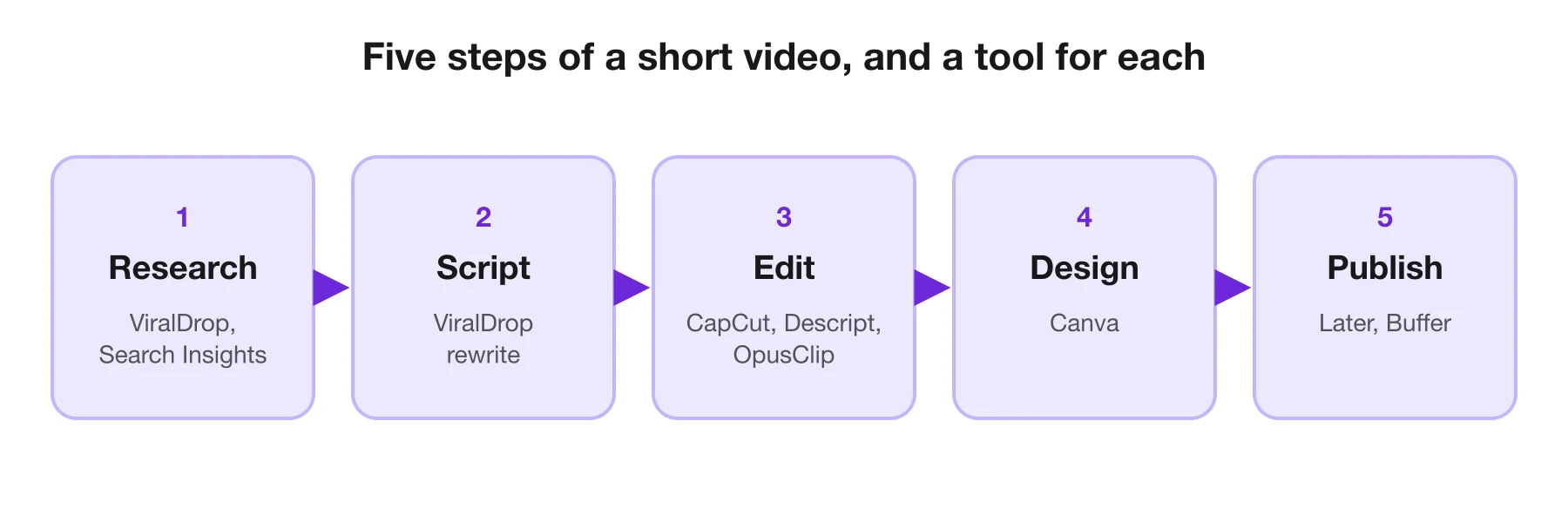
Most lists of content creator tools are one long page of logos. That makes it hard to tell which ones you need, because a tool is only useful for the step it helps with. This guide follows the order a short video is actually made in: finding an idea, writing the script, editing, designing the cover, and publishing. For each step you get two or three tools, what they cost, and when they are worth it.
Every price and plan was checked on the tool's own website on September 30, 2026.
Start the Next Video From One That Worked
Paste a viral TikTok, Reel or Short and see how it was built.
Content Creator Tools at a Glance
| Tool | Step | Best for | Price (checked Sep 30, 2026) |
|---|---|---|---|
| ViralDrop | research, script | why a viral video worked; rewriting it for you | plans from $9/mo; free welcome credits |
| Creator Search Insights | research | topics people search for on TikTok | free, in the TikTok app |
| CapCut | edit | quick edits with captions and templates | free to start |
| Descript | edit | editing video by editing its text | free plan; paid from $16/mo, billed yearly |
| Canva | design | covers, thumbnails and graphics | free plan; Pro and Business priced by region |
| OpusClip | repurpose | cutting long videos into short clips | free plan; Starter $15/mo |
| Later | publish | planning and scheduling across platforms | from $18.75/mo, billed yearly; 14-day trial |
| Buffer | publish | simple scheduling on a free plan | free for 3 channels; paid from $5/mo per channel |
Content Creation Tools for Beginners
If you are just starting, you need less than any list suggests. A phone, a free editor and one way to find ideas will carry you through your first fifty videos. Here is a starter kit that costs nothing:
- Your phone's camera, held steady against a window for light.
- CapCut to trim, add captions and put music under the video.
- Creator Search Insights in the TikTok app to find topics people are searching for. More free options for that app are in our guide to free and paid TikTok tools.
- Canva's free plan for a cover image or a simple title card.
- The platform's own scheduler, or Buffer's free plan if you post to several platforms.
What beginners usually get wrong is not the tools. It is buying a microphone and a light before posting ten videos. Post first, notice what holds people's attention, and only then spend money on the one thing that is holding you back. Often that is not gear at all, but the first three seconds of the video.
Keep that kit for your first month, and add one paid tool at a time only when you can name the problem it fixes.
The second common mistake is copying a creator's words rather than their structure. Study why a video worked, then make your own version with your own voice. That is what the research tools below are for.
Tools for Research and Ideas
Research is where content creator tools save the most time, because a video built on a proven idea needs less luck.
ViralDrop
Best for: turning a video that already went viral into a plan for your own.
ViralDrop analyses a TikTok, Instagram Reel or YouTube Short from its link: the key frames, the text on screen, the full transcript, and the split into hook, body and call to action. The rewrite keeps that structure and writes a new script for your product and audience. You can also transcribe a video, download the original file of one you have the rights to, run Trends Research on a niche, and track competitors' accounts with an email when one of their posts takes off.
- Pros: research and scriptwriting from real examples; a single balance for every tool; tracking included in all plans.
- Cons: it does not edit or publish; it only works with public videos.
- Price: analysis 5 credits, rewrite 5, transcript 2 per started 10 minutes; plans from $9 a month; free welcome credits for new accounts.
Creator Search Insights
Best for: checking that people want a topic before you make it.
Inside the TikTok app, search for "Creator Search Insights" to see topics people look for often, grouped by category or matched to what you post. The content gap filter shows topics with plenty of searches and few videos.
- Pros: real demand data; free.
- Cons: TikTok only; available in select regions.
- Price: free.
Tools for Editing
Editing is where most of a creator's hours go. These three tools cover almost every short-form edit.
CapCut
Best for: fast edits on the phone you filmed with.
CapCut runs on mobile, desktop and in the browser. Its site lists auto captions, caption templates, text to speech, voice enhancement, background removal and templates for social formats, and invites you to try it online for free without a card.
- Pros: free to start; the same editor on every device.
- Cons: some AI features cost extra.
- Price: free to start.
Descript
Best for: talking-head videos and podcasts you edit by editing the transcript.
Descript turns your recording into text, so cutting a sentence from the transcript cuts it from the video. Plans include Studio Sound, filler-word removal, clip creation and an AI co-editor called Underlord. The free plan includes one hour of media a month; Hobbyist includes ten, Creator thirty.
- Pros: very fast for spoken content; watermark-free export on paid plans.
- Cons: less suited to fast, music-driven edits; media hours cap how much you can import.
- Price: free; Hobbyist $16, Creator $24 and Business $50 per person a month, billed yearly ($24, $35 and $65 month to month).
OpusClip
Best for: cutting a long video, stream or podcast into short clips.
OpusClip finds clips in a long recording, reframes them for vertical video and adds animated captions. Its free plan gives 60 monthly credits, with a watermark, and clips expire after three days; paid plans remove the watermark and add editing and scheduling.
- Pros: saves hours if you already record long-form.
- Cons: little use if you only film short videos; the free plan's watermark and three-day export window.
- Price: free; Starter $15 a month; Pro from $14.50 a month on yearly billing.
Write a Script From a Proven Structure
Paste a viral video and get a new script for your product, built on the same structure.
Tools for Design
A cover image, a title card and a consistent look make a profile easier to recognise. For most creators one design tool is enough.
Canva
Best for: covers, thumbnails, carousels and brand graphics.
Canva's free plan includes the drag-and-drop editor, a large template library, one brand kit with three colours and 5 GB of storage. Pro adds premium templates and media, five brand kits, AI tools such as background removal and resizing, and social content scheduling. Business adds team tools and approvals.
- Pros: very easy to learn; templates for every platform size.
- Cons: heavy use of templates can make profiles look alike.
- Price: free; Pro and Business are paid, with prices shown for your region on Canva's page.
Tools for Publishing
Publishing tools matter once you post to more than one platform, or post for someone else, the job that tools for social media managers are built around.
Later
Best for: planning a visual calendar across Instagram, TikTok and more.
Later supports Instagram, Facebook, TikTok, Threads, YouTube, Pinterest, LinkedIn and Snapchat. The Starter plan includes one social set of eight profiles, up to 30 scheduled posts per profile, best-time-to-post suggestions and a link in bio. Growth and Scale add more profiles, users, approvals and longer analytics history.
- Pros: strong visual planner; a link-in-bio page included.
- Cons: no permanent free plan; post limits on Starter.
- Price: Starter $18.75, Growth $37.50 and Scale $82.50 a month, billed yearly; 14-day free trial.
Buffer
Best for: a free scheduler that grows with you one channel at a time.
Buffer's free plan connects three channels with ten scheduled posts each. Paid plans lift the limit, add analytics and first-comment scheduling, and charge per channel.
- Pros: genuinely free to start; simple.
- Cons: fewer planning features than Later.
- Price: free; Essentials $5 and Team $10 per channel a month, billed yearly.
Choosing Between Similar Tools
Several pairs on this page overlap, and the choice between them depends on how you work rather than on which is better.
CapCut or Descript? Pick CapCut if your videos are built from clips, music and on-screen text, and you edit on the phone that filmed them. Pick Descript if your videos are mostly you talking, because cutting sentences out of a transcript is much faster than scrubbing a timeline. Many creators use both: Descript to cut the talking, CapCut for the final polish.
OpusClip or a manual edit? OpusClip pays off when you already record long videos, streams or podcasts and want many short clips from each. If every video you make is already short, there is nothing for it to cut, and a normal editor is enough.
Later or Buffer? Later is the better planner if you think visually and post mostly to Instagram and TikTok, with a calendar and a link-in-bio page included. Buffer is the simpler option, with a free plan and per-channel pricing that stays cheap while you run only a few accounts.
Research by hand or with a tool? You can learn a lot by watching competitors' top videos and writing down their first sentences. A tool is worth it when you follow more accounts than you can check every week, or when you want the structure of a video broken down instead of guessing it.
A Simple Setup by Budget
Zero budget. CapCut, Canva Free, Buffer Free and the platforms' own analytics. Add ViralDrop's welcome credits to break down one competitor video and see whether the approach helps.
Around the price of one streaming service. Keep the free tools and pay for the step that takes you longest. For most creators that is either Descript Hobbyist for faster editing, or a research plan that tells you what to make next.
A small team or agency. A scheduler with approvals, a shared design tool with brand kits, and research that covers every client's competitors. At this level the cost of a tool matters less than the hours it saves each week across the team.
Whatever the budget, review your stack every few months. Tools change their plans often, and the one you chose last year may now have a free tier, or a limit you keep hitting.
Getting More From Every Video
The cheapest way to publish more is to repurpose each video you already made into several pieces. The tools above cover each step of that:
- Post it natively everywhere. One vertical video can go to TikTok, Instagram Reels and YouTube Shorts. A scheduler like Later or Buffer queues all three at once, so reuse costs you minutes, not another edit.
- Turn the words into text. A transcript of your video becomes a caption, a newsletter paragraph or a blog post outline. Descript produces one as part of editing; ViralDrop transcribes a public video from its link, with or without timestamps, and exports SRT or VTT subtitle files.
- Cut the long ones down. If you record a stream, a podcast or a webinar, OpusClip finds the short moments worth posting on their own.
- Make a carousel from the key points. The three main points of a video often work as a Canva carousel for Instagram, which reaches people who scroll past videos.
- Study the one that performed best. When one of your own videos beats the rest, break it down the same way you would a competitor's, and reuse its hook type and structure on your next idea.
A creator who does this can post three or four times from a single recording session, without the feed feeling repetitive, because each piece is shaped for the place where it appears and the people who see it there.
Free Content Creator Tools
You can make, design and publish a full week of videos without paying for anything:
| Step | Free option | Limit to know |
|---|---|---|
| research | Creator Search Insights | TikTok only, select regions |
| research | ViralDrop welcome credits | enough to try an analysis |
| edit | CapCut | some AI features are paid |
| edit | Descript Free | one hour of media a month |
| repurpose | OpusClip Free | watermark; clips expire after three days |
| design | Canva Free | one brand kit |
| publish | Buffer Free | three channels, ten scheduled posts each |
The first thing worth paying for is usually whatever you use every day: the editor for a creator who films daily, the scheduler for a manager posting to five platforms, research for anyone whose views have stalled.
How We Chose
We picked tools that a single creator can start with for free or for the price of a few coffees, that publish their prices, and that are built for short-form video rather than adapted to it. We sorted them by the step they help with, because a creator rarely needs two tools for the same step.
Every fact on this page comes from the tool's own website, opened on September 30, 2026. We do not quote ratings or user numbers, and we do not use screenshots of other companies' pages; the links above go to each tool's current plans. ViralDrop is our own product and is listed first in research; its card sticks to what the product does.
FAQ
What are the top 5 tools for content creators?
For short-form video, a common five is an editor like CapCut or Descript, Canva for design, a scheduler like Buffer or Later, the platform's own analytics, and a research tool such as ViralDrop to see why top videos in your niche work.
What tools do I need as a content creator?
At minimum you need a way to film, an editor and a place to find ideas. Add a design tool when you want consistent covers, and a scheduler when you post to several platforms or for clients.
What does a beginner content creator need?
A beginner needs a phone, good light from a window, a free editor such as CapCut and a steady posting habit. Microphones and paid tools can wait until you know which part of your videos holds people back.
Do content creators need paid tools?
Not at the start. Free plans from CapCut, Canva, Buffer and TikTok itself cover most needs. Pay for a tool once you hit its free limit every week, or when it saves you hours you would otherwise spend by hand.
Sources
- ViralDrop pricing — checked September 30, 2026
- TikTok Newsroom: Creator Search Insights — checked September 30, 2026
- Descript pricing — checked September 30, 2026
- CapCut — checked September 30, 2026
- Canva pricing — checked September 30, 2026
- OpusClip pricing — checked September 30, 2026
- Later pricing — checked September 30, 2026
- Buffer pricing — checked September 30, 2026
Keep reading
- Best AI Video Summarizers in 2026, Compared The best AI video summarizer for 2026 depends on the video: short-form clips, long YouTube lectures or meetings. Six tools compared from their own pages.
- How to Repurpose Video Content How to repurpose video content: turn one video into clips, posts and scripts without tripping the originality rules TikTok and Instagram tightened in 2026.
- Social Media Manager Tools: The Stack That Actually Gets Used Social media manager tools that teams actually use in 2026: scheduling, analytics, design and competitor research, with prices from each official page.