Instagram Reels Downloader Shortcut for iPhone
Published September 30, 2026 · Updated September 30, 2026 · 6 min read
An Instagram Reels downloader shortcut promises one tap from a Reel to your camera roll. On iPhone that tap usually runs through Apple's Shortcuts app: you share the Reel, pick the shortcut, and a moment later the video is in Photos. It works well when it works, and it stops working without warning when the service behind it changes.
This guide explains what these shortcuts are, how to install and use one safely, what to check when it fails, and how to save a Reel without one. The Apple steps are taken from Apple's own Shortcuts User Guide, checked on September 30, 2026.
No shortcut needed: paste a public Reel link to save the video file.
What the Instagram Download Shortcut Is
A shortcut is a list of actions that the Shortcuts app runs in order. A Reel download shortcut typically does four things: it takes the link you shared, sends it to a web service that finds the video file, downloads that file, and saves it to your Photos library.
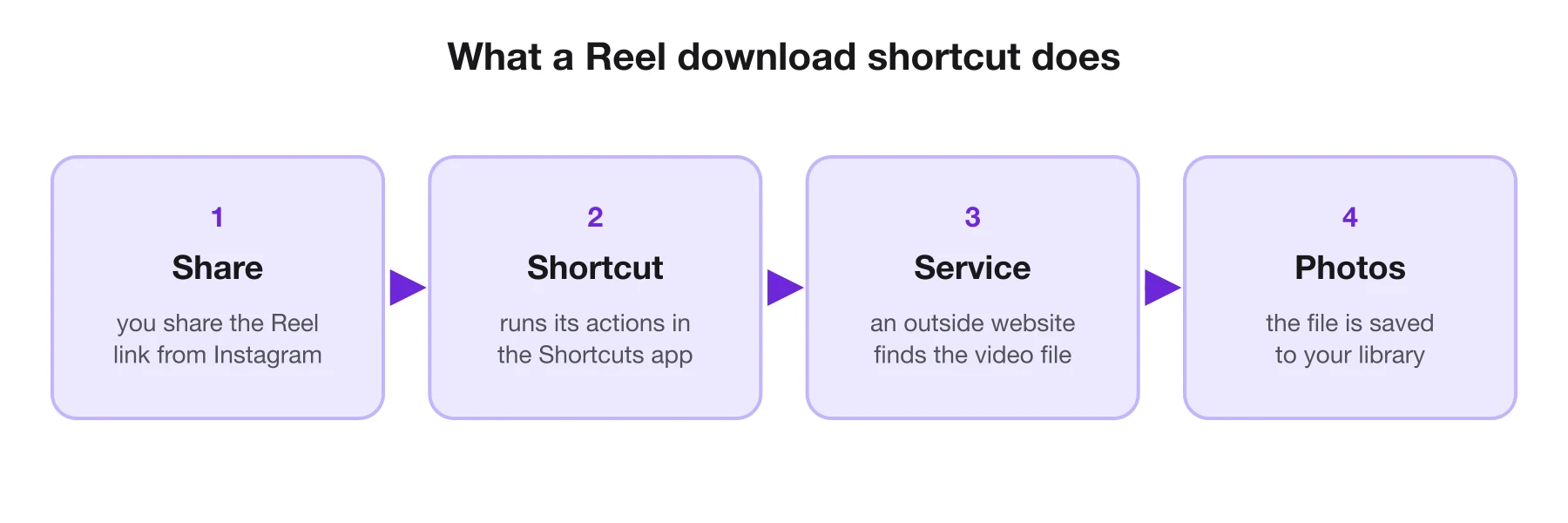
Three things follow from that design:
- It is not an Apple or Instagram feature. Shortcuts like this are written by other people and shared as links, often on community sites. Apple's guide describes how anyone can share a shortcut through an iCloud link.
- The service does the real work. If that service is slow, blocked or shut down, the shortcut fails, however recently you installed it.
- It can see what you give it. A shortcut runs with the permissions you grant. Before you run one from a stranger, open it and read its actions.
How to Install the Instagram Download Shortcut: iOS Steps
The Shortcuts app comes with iOS. If you deleted it, download it again from the App Store before you start.
- Open the shortcut's link on your iPhone. It usually starts with icloud.com/shortcuts. The Shortcuts app shows a description of what the shortcut does.
- Tap Get Shortcut or Add Shortcut. Apple's guide says this adds it to your collection.
- Open it and read the actions. Tap the three dots on the shortcut to see each step. Look for the web address it sends your link to.
- Turn on Show in Share Sheet. In the shortcut's Details, switch it on, so the shortcut appears when you tap Share in Instagram.
- Allow scripts only if you trust it. Some shortcuts run JavaScript. Apple asks you to turn on Settings > Shortcuts > Advanced > Allow Running Scripts for those, and warns that such shortcuts can access data on the page.
If you are not comfortable reading the actions, that is a good reason to use one of the methods further down instead.
How to Use It on a Reel
Once the shortcut is in your share sheet, saving a Reel takes a few taps.
- Open the Reel in Instagram. It needs to be from a public account.
- Open the share menu. Tap the paper-plane icon, then the option that opens the iPhone share sheet.
- Scroll to your shortcuts. Apple's guide says available shortcuts appear when you scroll down the share sheet.
- Tap the shortcut. A notification shows each action as it runs.
- Answer the permission prompts the first time. The shortcut may ask to access a website or your Photos library.
- Find the video in Photos. It is saved with your other videos.
If the shortcut does not appear in the share sheet, Apple notes that the app may not be passing the kind of content the shortcut accepts. Try copying the Reel's link first and running the shortcut from the Shortcuts app instead.
When the Shortcut Stops Working
Download shortcuts fail more often than almost any other kind, and the error message rarely says why. Work through these checks in order:
| What you see | Likely cause | What to try |
|---|---|---|
| an error right after you tap it | the service behind the shortcut changed or went down | check the shortcut's source page for a newer version |
| "could not find a video" | the Reel is from a private account, or was deleted | open the Reel in a browser while signed out |
| nothing happens | a permission prompt was declined | run it again from the Shortcuts app and allow access |
| the shortcut is missing from the sheet | Show in Share Sheet is off | turn it on in the shortcut's Details |
| it saves an image instead of the video | the post is a photo or a carousel | check the post type, then use a tool that saves slides |
If the source page has no update and the service is gone, the shortcut will not come back. Delete it, so it cannot send your links somewhere you no longer know about.
Save a Reel From Its Link
Paste a public Instagram link and get the original video file, with no shortcut to maintain.
A Way Without a Shortcut
You do not need a shortcut to save a Reel on iPhone. Two methods cover most cases, and neither depends on a third-party automation.
Instagram's own Download option. Instagram's Help Center lets anyone save a Reel from a public account in the app, and gives the creator a switch to turn that off. Open the Reel, tap the paper-plane icon and look for Download. If it is there, the video goes straight to your camera roll. If it is not, the creator switched it off or the account is private, and that is their choice to make.
A downloader in Safari. Copy the Reel's link in Instagram, open ViralDrop's downloader in Safari and paste it. ViralDrop fetches the original video file, or every slide of a carousel, and adds no logo or watermark of its own. Each file costs 1 credit from the welcome credits every new account gets, and the credit comes back if the download fails. It works on any device with a browser, and there is nothing to install or update.
Whichever method you use, a saved Reel is still the creator's work. Keep it for reference or study, and ask before you post it anywhere. For the full comparison of saving, collections and downloads, see our guide on how to save Instagram Reels, or go straight to the Instagram Reels downloader.
| Method | Needs | Breaks when |
|---|---|---|
| a downloader shortcut | the Shortcuts app, trust | the service behind it changes |
| Instagram's Download option | nothing | the creator turns downloads off |
| ViralDrop in Safari | a ViralDrop account | the Reel is private or deleted |
| screen recording | nothing | never, but quality and sound suffer |
FAQ
Instagram Reels download shortcut iOS: how do I use it?
Add the shortcut from its iCloud link, turn on Show in Share Sheet, then open a Reel, tap the paper-plane icon, open the share sheet and tap the shortcut. The video is saved to Photos if the Reel is public.
Is an Instagram download shortcut safe?
It is as safe as the person who wrote it and the service it calls. Open the shortcut and read its actions before running it, avoid ones that ask to run scripts, and delete any you no longer use.
Why does my Reels shortcut say it can't find the video?
Usually the Reel is from a private account, has been deleted, or the service behind the shortcut has changed how it works. Check the Reel opens in a browser, then look for an updated version of the shortcut.
Can a shortcut download Reels from private accounts?
No reliable method can, and it should not. A private account's Reels are meant only for its approved followers. Shortcuts and downloaders that work from links can only reach posts anyone can open.
Does a Reels downloader shortcut work on iPad or Mac?
The Shortcuts app is on iPad and Mac too, and many shortcuts run there. Whether a particular Reel shortcut works depends on how it was written, so check its source page before relying on it.
Sources
- Apple Shortcuts User Guide: launch a shortcut from another app — checked September 30, 2026
- Apple Shortcuts User Guide: share shortcuts — checked September 30, 2026
- Apple Shortcuts User Guide: advanced privacy and security settings — checked September 30, 2026
- Instagram Help Center: who can download your reels — checked September 30, 2026
Keep reading
- How to Save Instagram Reels to Your Phone How to save Instagram Reels: bookmark them to Saved, download a public Reel when the creator allows it, keep your own drafts, or save the file by link.
- Best AI Video Summarizers in 2026, Compared The best AI video summarizer for 2026 depends on the video: short-form clips, long YouTube lectures or meetings. Six tools compared from their own pages.
- Content Creator Tools: What to Use at Each Step Content creator tools for every step of a short video in 2026: research, scripting, editing, design and publishing, with prices from each official site.